
Bug Report Template (Free Excel & Word) + Examples
By GiveFeedback.ioUpdated 6 min readEspañol

Learning how to write a bug report is the cheapest way to get bugs fixed faster. A developer who receives "the form doesn't work" has to ask four follow-up questions before starting. One who receives a URL, a browser version, three steps and a marked-up screenshot can usually reproduce it within minutes. Below you'll find the fields that matter for websites, a free template you can copy, and a bad vs good example.
What is a bug report?
A bug report is a written description of a software problem that gives a developer enough information to reproduce it, understand it and fix it. For websites, that means where the problem happens, on which device and browser, how to trigger it, and what should have happened instead.
A bug report is not a complaint and not a feature request. "I'd like the menu to be green" is a change request. "The menu doesn't open on iPhone" is a bug.
The fields that matter for website bugs
| Field | What to write | Example |
|---|---|---|
| Title | Where + what, in a few words | "Contact form: Send button does nothing on mobile" |
| URL | The exact page address | https://example.com/contact/ |
| Browser + version | Name and version number | Safari 17.5 |
| Operating system | Name and version | iOS 17.5 |
| Screen size / device | Resolution or device model | iPhone 13, 390×844 |
| Steps to reproduce | Numbered, starting from loading the page | 1. Open the URL 2. Fill in all fields 3. Tap Send |
| Expected result | What should happen | Form is sent and a thank-you message appears |
| Actual result | What happens instead | Nothing happens; the button stays active |
| Screenshot or video | The problem, marked up | Arrow pointing at the button |
| Severity / priority | Impact and urgency | High: no leads can come in from mobile |
Why each one matters
- URL. "The services page" can mean three different pages on a site with several languages or a staging and live version. Copy the address bar.
- Browser, OS and screen size. Many website bugs only happen in one browser or at one width. Without this, the developer tests on their own setup, sees nothing wrong and closes the report as "cannot reproduce".
- Steps to reproduce. A screenshot proves the bug exists; the steps show how to make it happen again. Start from a fresh page load and number each action.
- Expected vs. actual result. This is what turns "it doesn't work" into something testable. Sometimes it also reveals that the site is behaving as designed and the request is really a change.
- Screenshot. A marked-up screenshot removes ambiguity about which element you mean. Draw an arrow or a box on the exact spot.
Optional but useful: whether it happens every time or only sometimes, whether you're logged in, the browser language, and console errors if you're technical enough to open the developer tools.
Free bug report template (copy and paste)
Paste this into an email, a doc, a GitHub issue, a Notion page or whatever tracker you use:
Title: [Page/feature]: [what goes wrong], [where/when]

URL:
Browser + version:
Operating system + version:
Device / screen size:
Logged in? (yes/no, which role):

Steps to reproduce:
1.
2.
3.

Expected result:


Actual result:


Happens: [every time / sometimes / once]
Severity: [critical / high / medium / low]
Screenshot or recording: [attach, with the problem marked]
Notes:
Keep one bug per report. If you find three problems on the same page, write three reports.
Bad vs good bug report example
Bad
Title: Form broken
The contact form isn't working, please fix ASAP!!
The developer doesn't know which form (the site has two), on what device, what "not working" means, or whether it's urgent compared to anything else.
Good
Title: Contact form: Send button does nothing on iPhone (Safari)

URL: https://staging.example.com/contact/
Browser + version: Safari 17.5
Operating system + version: iOS 17.5
Device / screen size: iPhone 13, 390x844
Logged in? No

Steps to reproduce:
1. Open https://staging.example.com/contact/ on the iPhone
2. Fill in Name, Email and Message with valid data
3. Tap "Send"

Expected result:
The form is submitted and the message "Thanks, we'll be in touch" appears.

Actual result:
Nothing happens. No message, no error, the fields keep their content.
On desktop Chrome 129 (Windows 11) the same steps work.

Happens: every time (tried 3 times)
Severity: high (mobile visitors can't contact the client)
Screenshot: attached, Send button circled in red
The good report takes about two minutes longer to write and can save a lot more than that in back-and-forth. Notice the extra line about desktop Chrome: saying where the bug does not happen is one of the most useful clues you can give.
Tips for writing better bug reports
- Reproduce it once before reporting. If you can't make it happen again, say so ("happened once, couldn't reproduce").
- Write the title last. Once you've written the steps, the title is easier to make specific.
- Describe, don't diagnose. "The image is blurry on the homepage hero" is better than "the image compression is wrong". Leave the cause to the developer.
- Use neutral language. Capital letters and exclamation marks don't speed up a fix.
- Check for duplicates. Search the tracker before adding a new report.
- Add what you already tried. Another browser, clearing the cache, a different device: each one narrows down the cause.
Why clients and testers skip half the fields
Even with a template, non-technical people rarely know their browser version or screen resolution, and copying URLs and taking marked-up screenshots by hand takes time. That's when you get "form broken" reports, especially from clients reviewing a site during a client feedback round.
The fix is to capture the technical fields automatically so the reporter only writes what a human has to write: the steps, the expected result and the actual result.
How GiveFeedback.io fills in the template for you
GiveFeedback.io adds a "Give Feedback" button to your website with one JavaScript snippet. When someone clicks it (no account needed), the browser asks permission to capture the tab, and they can mark up a screenshot of the visible page with arrows, boxes, text, a pen or a highlighter. They then add a title, a description and a type such as Bug.
These fields from the template are attached automatically to every report:
- Page URL
- Browser and version
- Operating system and version
- Screen resolution and whether it's a mobile device
- Browser language and timezone
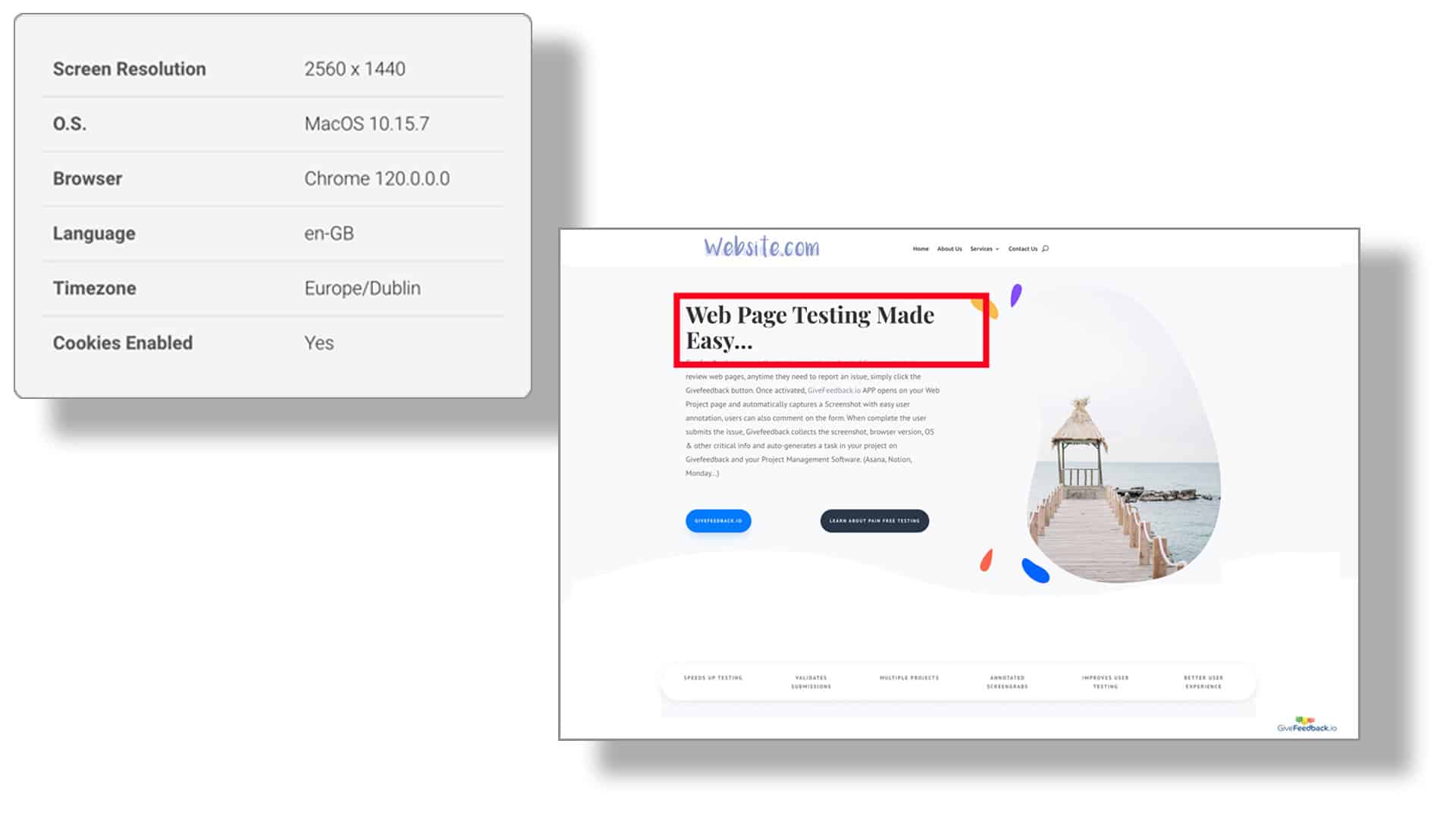
What it doesn't capture: console logs, network requests or video, and it captures the visible viewport rather than the full page. For bugs that need logs or a recording, a developer will still have to dig in. Reports land in a dashboard where you mark them Open, Resolved or Archived, and can be sent automatically to Notion or Asana. The Free plan covers 5 projects and 50 feedback reports; see pricing for the rest.
Whether you use a tool or a plain template, the rule is the same: one bug per report, the exact URL and setup, numbered steps, and expected versus actual result. Get those right and most bugs are fixed on the first try.
Frequently asked questions
What should a bug report include?
A specific title, the page URL, the environment (browser, OS, screen size), numbered steps to reproduce, the expected result, the actual result and a screenshot or recording. Severity and priority help the team decide what to fix first.
What is the difference between expected and actual result in a bug report?
The expected result is what should happen if the site worked correctly; the actual result is what happens instead. Writing both removes guesswork, because some 'bugs' turn out to be features working as designed.
How do I write a good bug report title?
Name the place and the problem in under about ten words, for example 'Checkout: Pay button does nothing on Safari iOS'. Avoid vague titles like 'Bug' or 'Site broken'.
Should I report several bugs in one report?
No. Write one report per bug. Separate reports can be assigned, fixed and closed independently, and nothing gets lost when one part is fixed and another isn't.
Keep reading

Guides
How to Choose a Website Feedback Tool (2026 Checklist)
How to choose the best website feedback tool in 2026: tool types, a 12-point checklist, a free scoring template and a one-week client trial plan.

Guides
How to Collect Client Feedback on a Website (Step by Step)
How to collect client feedback on a website: compare 5 methods, run a clean review round step by step, and copy our sample briefing email for clients.

Guides
User Acceptance Testing (UAT): Template, Checklist & Examples
What user acceptance testing is, UAT vs QA, example test scenarios, exit criteria and a free UAT test plan and sign-off template (Excel) for websites.
Collect visual feedback on your next website
Visual website feedback for agencies, freelancers and their clients.
Free plan forever · No credit card · Set up in minutes