
Notion Bug Tracker Template (Free) for Website Projects
By GiveFeedback.ioUpdated 7 min readEspañol

A Notion bug tracker is a good fit for agencies and freelancers who already run their projects in Notion: no new tool for the team, and bugs sit next to the brief, the sitemap and the meeting notes. This guide shows how to set one up for website projects (the properties to create, the views that help, a weekly routine) and how to fill it automatically with client feedback instead of copying screenshots out of emails.
What is a Notion bug tracker?
A Notion bug tracker is a Notion database in which every bug, change request or piece of feedback is one page, and each page has properties (Status, Type, Priority, URL, Assignee and so on) that you can filter, sort and group. Notion has no special "bug" feature; the database is the bug tracker.
For website projects this is usually enough. You don't need sprints, release versions or code links to fix "the hero image is blurry on Retina screens". You need to know what is broken, where, who is on it, and whether it's done.
Step 1: Create the database
Create a new full-page database in your project's Notion space (type /database and choose the full-page option) and name it something like "Website feedback – Client name". One database per client project keeps sharing simple; one shared database with a Project property works too if you run many small projects.
Step 2: Add these properties
| Property | Notion type | Example values | Why |
|---|---|---|---|
| Title | Title | "Contact button overlaps footer on mobile" | One line that describes the problem |
| Status | Status | New, In progress, Ready for review, Done | Drives the board view |
| Type | Select | Bug, Content change, Design change, Question | Separates real bugs from opinions |
| Priority | Select | High, Medium, Low | Decides what to fix before launch |
| Page URL | URL | https://staging.example.com/contact/ | Where the problem is |
| Browser / device | Text | Safari 18, iPhone, 390×844 | So the developer can reproduce it |
| Assignee | Person | Your developer or designer | Who owns it |
| Reported by | Text or Person | Client name | Who to ask for clarification |
| Screenshot | Files & media | Annotated image | What the reporter saw |
| Due | Date | Launch date | Optional, for deadlines |
Keep it short. Every property you add is a field someone has to fill. If nobody uses "Severity" after two weeks, delete it.
Step 3: Create the views
Views are what turn a list into a working tracker. Four are enough:
- Board by Status. The default view for daily work. Columns New, In progress, Ready for review, Done. Drag cards as they move.
- Triage. Table view filtered to Status = New, sorted by created time, newest first. One person goes through this daily and sets Type, Priority and Assignee.
- My tasks. Board or list filtered to Assignee = Me, hiding Done. Each developer bookmarks this one.
- Client review. Filtered to Status = Ready for review. Share this with the client (Notion lets you share a page with guests) so they can confirm fixes.
Add the Page URL and Priority properties to the board cards so you can see them without opening each page.
Step 4: Agree on how feedback gets in
This is where most Notion bug trackers fail. The database is ready, but feedback still arrives as an email with six screenshots, a WhatsApp voice note and a comment in a shared PDF. Someone on your team then:
- reads the email,
- saves each screenshot,
- creates a Notion page per issue,
- pastes the screenshot and the text,
- asks the client which page and which browser.
That's five minutes per issue, and for a 40-comment review round it's most of an afternoon. Asking the client to use Notion directly rarely works either: they need an account, they don't know your properties, and they still have to take and annotate screenshots by hand.
Step 5: Fill the tracker automatically with GiveFeedback.io
GiveFeedback.io is a visual feedback tool that adds a "Give Feedback" button to your website. Clients and testers click it, capture the page, mark it up and submit. With the Notion integration, each report is created as a page in your Notion database.
How to connect it
- Sign up free at GiveFeedback.io and create a project with your site URL.
- Paste the script into the site's
<head>(install guides cover WordPress, Shopify, Wix, Squarespace, PrestaShop and Google Tag Manager). - In the project, open the integrations screen and choose Notion.
- Sign in to Notion and authorize GiveFeedback.io (OAuth). When Notion asks which pages to share, include the feedback database.
- Select the database where feedback should go.
What arrives in Notion
Each piece of feedback becomes a new page in the chosen database, with:
- the title the reporter wrote,
- the annotated screenshot embedded in the page,
- the description and feedback type (Bug, Proposal, Recommendation, Feature, or your own types),
- the metadata: page URL, screen resolution, OS and version, browser and version, mobile or desktop, language and timezone,
- a link back to the report in the GiveFeedback.io dashboard.
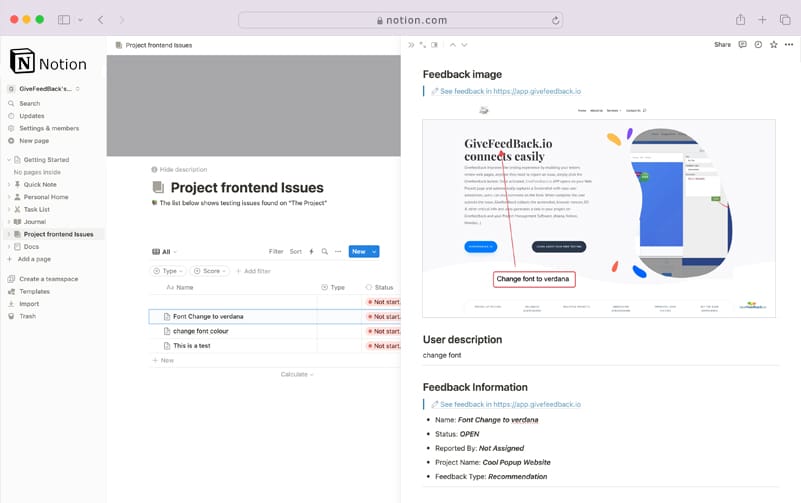
Your team then works in Notion as usual: the triage person sets Priority and Assignee, the developer moves the card across the board. The client never needs a Notion account.
What it doesn't do (yet)
To set expectations honestly:
- The integration creates pages in Notion. Decide whether Notion or the GiveFeedback.io dashboard is the source of truth for status, so nobody has to check two places.
- Screenshots cover the visible part of the page, not the full scroll length.
- There are no console logs or video recordings. For JavaScript-heavy apps, a developer may still need to reproduce the bug in DevTools.
- Notion and Asana are the only working integrations today; Jira, ClickUp, Trello and others are listed as coming soon. If your team is on Asana, see how to get annotated screenshots into Asana.
A weekly routine that keeps the tracker useful
A tracker is only as good as its upkeep. This routine takes about 15 minutes a day during review periods:
- Daily triage (10 minutes). Open the Triage view. For each new page: set Type and Priority, assign it, or merge duplicates. If a report is unclear, ask the reporter right away while they still remember.
- Before each client call. Filter by Reported by = client and Status ≠ Done. That's your agenda.
- Before launch. Filter Priority = High, Status ≠ Done. That list must be empty, or explicitly accepted by the client, before you go live. Our website QA checklist covers what else to check.
- After launch. Archive the board or move remaining Low items into a "Phase 2" view so the database doesn't become a graveyard.
Example: one report, start to finish
A client reviewing a staging site notices the newsletter form button is cut off on her laptop. She clicks "Give Feedback", captures the screen, draws a rectangle around the button and writes:
Title: Subscribe button cut off Description: I can only see "Subscr". Should show the full word. Type: Bug
Shortly after, a page titled "Subscribe button cut off" appears in your Notion database with her screenshot, the URL /blog/, "Windows 11, Chrome, 1280×720". Your project manager sets Priority = High and assigns it to the developer, who reproduces it in the same viewport, fixes the CSS and moves the card to Ready for review. The client checks the Client review view and confirms. No email was involved.
For more on what makes a report like that useful, see how to write a bug report.
Is Notion the right bug tracker for you?
Notion works well when your team already lives there, projects are websites rather than complex software, and most reports come from clients and non-technical reviewers. It's weaker when you need Git integration, release planning or detailed time tracking; then a dedicated tool is worth the switch.
If Notion fits, set up the database with the properties above today, add the four views, and connect GiveFeedback.io so the next review round fills the tracker for you. The free plan includes the Notion integration.
Frequently asked questions
Can you use Notion as a bug tracker?
Yes. Create a database with properties for status, type, priority, page URL and assignee, and add a board view grouped by status. It works well for small teams and agency projects; large engineering teams that need release tracking and Git integration usually prefer a dedicated tool like Jira or Linear.
How do I get website feedback into Notion automatically?
Use a feedback tool with a Notion integration. With GiveFeedback.io you connect Notion through OAuth, choose a database, and every report submitted on your website becomes a page in that database with the screenshot, description, metadata and a link back to the report.
Do clients need a Notion account to report bugs?
Not if they report through a website feedback widget. With GiveFeedback.io, clients click a button on the site and submit feedback without any account; only your team needs access to the Notion database.
Is the GiveFeedback.io Notion integration free?
Yes. All integrations, including Notion, are available on the free plan, which allows up to 5 projects and 50 feedback reports. Paid plans start at €9.99 per month.
Keep reading

Workflow
Client Website Approval: How to Get Sign-Off Without Delays
Client website approval made simple: the 5 approval stages, a revision-limit contract clause, a sign-off email template and a checklist you can reuse.

Workflow
Asana Bug Tracking: Get Annotated Screenshots into Tasks
Get annotated screenshots and website feedback into Asana: attachments, Proofing, email-to-task, Forms or automatic tasks from a feedback widget, compared.
Guides
How to Choose a Website Feedback Tool (2026 Checklist)
How to choose the best website feedback tool in 2026: tool types, a 12-point checklist, a free scoring template and a one-week client trial plan.
Collect visual feedback on your next website
Visual website feedback for agencies, freelancers and their clients.
Free plan forever · No credit card · Set up in minutes