
Website QA Checklist: 60+ Checks Before Launch (Free Template)
By GiveFeedback.ioUpdated 10 min readEspañol

A website QA checklist is the list of checks you run on a site before it goes live, so the client and their visitors don't find the broken form, the 404 or the missing cookie banner for you. Below is a complete checklist grouped by area, ready to copy into your project tool, followed by how to run the QA round with clients and testers without drowning in emails and vague screenshots.
How to use this website QA checklist
Don't hand one giant list to one person. Split it:
- Assign each area to a person. The developer takes functionality and performance, a designer or PM takes responsive layout and content, someone outside the project takes forms and user flows.
- Test on the staging site with production settings. Same theme, same plugins, real content, real email delivery. Testing on placeholder text hides half of the problems.
- Log every issue in one place, with a screenshot, the page URL and the browser. More on that further down.
- Fix, then re-test only what changed, plus a quick pass over forms and checkout (fixes there tend to break other things).
Mark items "not applicable" instead of deleting them, so the list stays reusable for the next project.
1. Functionality
- Every page in the sitemap loads without errors
- Main navigation and footer links go to the right pages
- Search returns sensible results (and handles "no results")
- Logins, password reset and account pages work
- Shop: add to cart, change quantity, coupon, checkout, payment (test mode), confirmation email
- Booking, calculators, filters, sliders and other interactive elements work
- 404 page exists, is styled and links back to the site
- Favicon and site icon appear in the browser tab
2. Forms
- Every form submits and shows a clear success message
- Submissions arrive at the right inbox or CRM (check the client's address, not yours)
- Required fields and validation messages make sense
- Autoresponder emails are sent, with correct copy and sender name
- Spam protection (honeypot, reCAPTCHA or similar) is active
- Newsletter sign-up adds the contact to the right list
- File uploads accept the expected formats and sizes
3. Links
- No broken internal links (run a crawler such as Screaming Frog or a broken-link plugin)
- No links pointing to the staging domain
- External links work and open where you intend
- Phone numbers use
tel:and emails usemailto: - Social icons point to the client's real profiles, not the theme demo
- Old URLs redirect (301) to the new ones if this is a redesign
4. Responsive layout and devices
- Check every template at mobile, tablet, laptop and wide desktop widths
- Test on at least one real iPhone and one real Android phone, not only browser dev tools
- Menus open and close on touch devices
- Text is readable without zooming; buttons are easy to tap
- No horizontal scrolling on mobile
- Images are not stretched, cropped badly or pixelated
- Popups and cookie banners can be closed on small screens
5. Browsers
- Latest Chrome, Safari, Firefox and Edge
- Safari on iOS (it behaves differently from desktop Safari)
- Any browser the client's audience uses a lot (check their current analytics)
- Fonts, animations and sticky headers behave the same everywhere
6. Performance
- Run PageSpeed Insights on the home page and the heaviest template
- Images compressed and served at sensible sizes (WebP or AVIF where possible)
- Caching and a CDN set up if the host supports them
- No unused plugins, scripts or fonts loading on every page
- Videos are not autoplaying large files on mobile
7. SEO basics
- Every page has a unique title and meta description
- One H1 per page; headings in a logical order
- "Discourage search engines" /
noindexremoved from the live site - robots.txt allows crawling; XML sitemap generated
- Canonical URLs point to the live domain
- 301 redirects from old URLs in place (redesigns lose rankings without them)
- Open Graph image and title set for social sharing
- Site added to Google Search Console and sitemap submitted after launch
8. Accessibility basics
- Every meaningful image has alt text
- Text has enough contrast against its background
- The site can be used with the keyboard alone (Tab, Enter, Esc); focus is visible
- Form fields have labels, not only placeholders
- Link text says where it goes ("See pricing", not "Click here")
- The page language is set in the HTML
For a fuller standard, see the W3C's WCAG overview.
9. Content and copy
- No lorem ipsum or "Sample page" left anywhere (search the database or the export)
- Spelling and grammar checked, including buttons and error messages
- Prices, opening hours, addresses and phone numbers confirmed by the client
- Images are licensed and are the final versions
- Dates in the footer and blog are correct
- Translations complete on every language version
10. Legal and cookies
- Privacy policy, legal notice and terms published and linked in the footer
- Cookie banner shows before non-essential cookies load, with accept and reject options
- Forms include a consent checkbox or privacy notice where the law requires it
- Shop: returns, shipping and withdrawal information published
11. Analytics and tracking
- Analytics installed on the live domain and receiving visits
- Conversion events fire (form sent, purchase, phone click)
- Tags respect cookie consent
- Staging site blocked from search engines and excluded from analytics
How to run the QA round with clients and testers
The checklist tells you what to test. The part that usually goes wrong is how the issues get back to you. A typical round looks like this: the client sends a 40-line email, two WhatsApp voice notes and a PDF with arrows drawn on a screenshot of the wrong page. Then you spend a morning asking "which page?", "which phone?" and "what did you expect to see?".
A better process:
- Send a short brief with the staging link. Tell testers which pages to check, by when, and how to report. Example:
Hi Laura, the new site is ready for review at staging.example.com. Please go through the home page, the services pages and the contact form by Thursday. When something looks wrong, click the "Give Feedback" button at the bottom of the page, draw on the screenshot and write what you expected. No account needed.
- Ask for one issue per report. "The menu and the footer and the price" in one message is three tasks, and one of them always gets lost.
- Make every report include the same facts: what happened, what they expected, the page URL, the device and browser, and a screenshot. Our guide on how to write a bug report has a template you can share.
- Triage once a day. Label each issue as bug, content change or new request. New requests go to a separate list (they are not QA, they are scope).
- Close the loop. Mark issues as resolved and ask the reporter to re-check only those.
This is the job GiveFeedback.io was built for. You paste one script into the site's <head> (there are install guides for WordPress, Shopify, Wix, Squarespace and others) and a feedback button appears. Testers click it, the browser asks to capture the tab, and they draw on a screenshot of what they see with arrows, boxes, text and a highlighter. Each report arrives with the page URL, screen resolution, operating system, browser and version attached automatically.
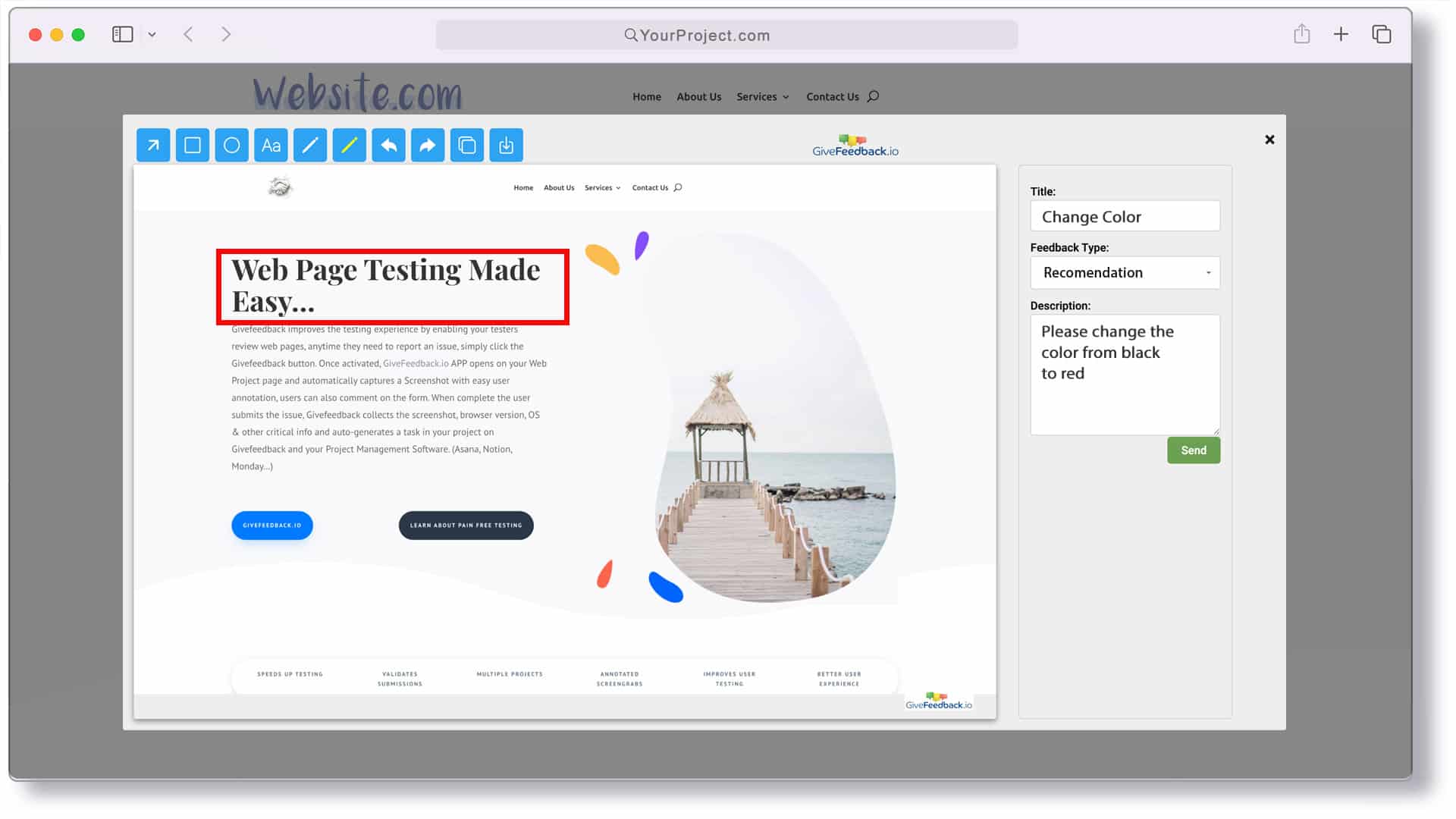
Reports land in a dashboard where you filter by Open, Resolved or Archived, or go straight to your project tool: an issue in Jira, a card in Trello, a task in Asana, a page in Notion and more. To be clear about its limits: it captures the visible part of the page (not the full page), doesn't record video, and doesn't capture console or network logs.
What to automate and what to check by hand
Some parts of the checklist are better done by tools, others need a person:
| Area | Automate with | Still check by hand |
|---|---|---|
| Broken links | Crawler (Screaming Frog, broken-link plugins) | Links in menus that appear on hover |
| Performance | PageSpeed Insights, Lighthouse | How it feels on a mid-range phone on 4G |
| SEO basics | Crawler, SEO plugin checks | Titles and descriptions actually make sense |
| Accessibility | Lighthouse, WAVE | Keyboard navigation, alt text quality |
| Forms | Uptime/form monitors after launch | Email content, where submissions arrive |
| Visual layout | Visual regression tools on large projects | Real devices, real content, client's eye |
Automated checks catch the mechanical errors fast. People catch the things that make a client unhappy: the wrong phone number, the photo of the old office, the button nobody understands.
After launch: the first 48 hours
- Re-run the form tests on the live domain
- Check that SSL works on www and non-www, and one redirects to the other
- Confirm analytics records live visits
- Submit the sitemap in Search Console
- Take a backup
- Keep the feedback button on for a couple of weeks so the client can report anything they spot
Once QA is done, the client still needs to confirm the site does what they asked for. That's user acceptance testing, covered in our guide to UAT for websites.
Copy the checklist, delete the areas that don't apply to your project type, and save it as a template. The second time you use it, QA takes half the time, because nobody has to remember what to check.
Frequently asked questions
What should a website QA checklist include?
At minimum: functionality, forms, links, responsive layout on real devices, the main browsers, page speed, SEO basics (titles, meta descriptions, redirects, sitemap), accessibility basics, copy and images, legal pages and cookie consent, and analytics tracking.
How long does website QA take before launch?
It depends on the size of the site. A 10-page brochure site can usually be checked in a few hours by two or three people; a shop or web app with logins and payments needs several days and repeated rounds after fixes.
Who should do QA on a website?
The developer checks functionality first, then someone who did not build the site runs the checklist, and finally the client reviews content and approves. Fresh eyes find issues the builder no longer sees.
What is the difference between QA and UAT?
QA checks that the site works correctly against the specification and is done by the team that builds it. UAT (user acceptance testing) checks that the site does what the client or users need, and is done by them before sign-off.
Keep reading

Guides
How to Choose a Website Feedback Tool (2026 Checklist)
How to choose the best website feedback tool in 2026: tool types, a 12-point checklist, a free scoring template and a one-week client trial plan.

Guides
How to Collect Client Feedback on a Website (Step by Step)
How to collect client feedback on a website: compare 5 methods, run a clean review round step by step, and copy our sample briefing email for clients.

Guides
User Acceptance Testing (UAT): Template, Checklist & Examples
What user acceptance testing is, UAT vs QA, example test scenarios, exit criteria and a free UAT test plan and sign-off template (Excel) for websites.
Collect visual feedback on your next website
Visual website feedback for agencies, freelancers and their clients.
Free plan forever · No credit card · Set up in minutes