
Asana Bug Tracking: Get Annotated Screenshots into Tasks
By GiveFeedback.ioUpdated 7 min readEspañol

An annotated screenshot is worth ten lines of description, but only if it ends up in the task where the work happens. If your team runs website projects in Asana, there are five ways to get annotated screenshots into Asana tasks, from dragging a file in by hand to having client feedback arrive as ready-made tasks. This guide compares them, shows when each makes sense, and suggests an Asana project setup for website feedback.
Why annotated screenshots belong in the Asana task
An annotated screenshot is a capture of the screen with arrows, boxes or text added to point at a specific problem. On its own, in a Downloads folder or a chat thread, it loses its context. Inside the Asana task, it sits next to the assignee, the due date and the conversation, so the developer doesn't have to ask "which page was this?" or search an inbox for the image.
The goal is simple: one issue, one task, with the screenshot attached and the page URL and browser written down.
Method 1: Paste or attach the screenshot manually
The basic route works on every Asana plan:
- Take and annotate the screenshot (Snipping Tool on Windows, Shift-Command-4 and Markup on Mac, or an app like ShareX or CleanShot X; see our guide to annotating website screenshots).
- Create a task in the right project.
- Drag the image into the task, attach it with the paperclip, or paste it into the description or a comment.
- Type the page URL, browser and screen size into the description.
Good for: your own team, a few issues a week. Weak point: every step is manual, and the URL and browser are the first thing people forget.
Method 2: Annotate inside Asana with Proofing
Asana Proofing lets you open an image or PDF attached to a task, click on a spot and leave feedback. Each annotation becomes a subtask that you can assign and give a due date, according to Asana's help center.
Good for: design reviews of mockups and PDFs, where the image is already in Asana. Weak point: someone still has to capture and upload the screenshot first, and Proofing is limited to the higher plans (see the table below).
Method 3: Email the screenshot to the project
Every Asana project has its own email address in the format x+projectID@mail.asana.com (the project ID is the number in the project's URL). Send an email with the annotated screenshot attached: the subject becomes the task name and the body becomes the description. You can also forward emails to x@mail.asana.com to create a task assigned to yourself. Details are in Asana's email tasks help article.
Good for: turning client emails with screenshots into tasks without retyping them. Weak point: you can only create tasks in projects you're a member of (unless the project and team are public), so clients usually can't send to it directly. And one email with six issues becomes one task, not six.
Method 4: Collect feedback with an Asana form
Asana Forms let anyone fill in a form whose submissions become tasks in a project. Add fields for page URL, description and a file upload for the screenshot, and share the form link with your client.
Good for: structured requests from people outside Asana. Weak point: the client still has to take, annotate and upload the screenshot themselves, and type the URL and browser. Many won't.
Which Asana plan do you need?
| Feature | Personal (free) | Starter | Advanced |
|---|---|---|---|
| Attach and paste images | Yes | Yes | Yes |
| Email-to-task | Yes | Yes | Yes |
| Forms | No | Yes | Yes |
| Custom fields | No | Yes | Yes |
| Proofing (annotate in Asana) | No | No | Yes |
| Price per user/month, billed yearly | $0 | $10.99 | $24.99 |
| Price per user/month, billed monthly | $0 | $13.49 | $30.49 |
Source: asana.com/pricing, as of October 2026.
The problem with all four manual methods
Methods 1 to 4 share the same weakness for website feedback: a person has to capture the screenshot, annotate it, move it into Asana and add the context. For your own developer, that's fine. For a client reviewing a website before launch, it means you receive a PDF with arrows, a long email, or a form with "see attached" and no attachment, and someone on your team spends an afternoon turning it into tasks.
Method 5: Automatic tasks from a website feedback widget
A website feedback widget puts a feedback button on the site itself, so the screenshot, the annotation and the technical context are captured in one step and sent to Asana for you.
With GiveFeedback.io and its Asana integration:
- Install the widget. Create a free project and paste the script into the site's
<head>(there are install guides for WordPress, Shopify, Wix, Squarespace and more). - Connect Asana. In the project's integrations screen choose Asana, sign in and authorize GiveFeedback.io (OAuth).
- Pick the destination. Select the Asana workspace and the project where tasks should be created.
- Send the client the link. They click "Give Feedback" on the site, allow the browser to capture the tab, mark up the screenshot with arrows, boxes, text or highlighter, and add a title and description. No account needed.
Each report then becomes one Asana task with:
- the reporter's title as the task name,
- the description and feedback type,
- the metadata: page URL, screen resolution, OS and browser with versions, mobile flag, language and timezone,
- the annotated screenshot attached,
- a link back to the report in GiveFeedback.io.
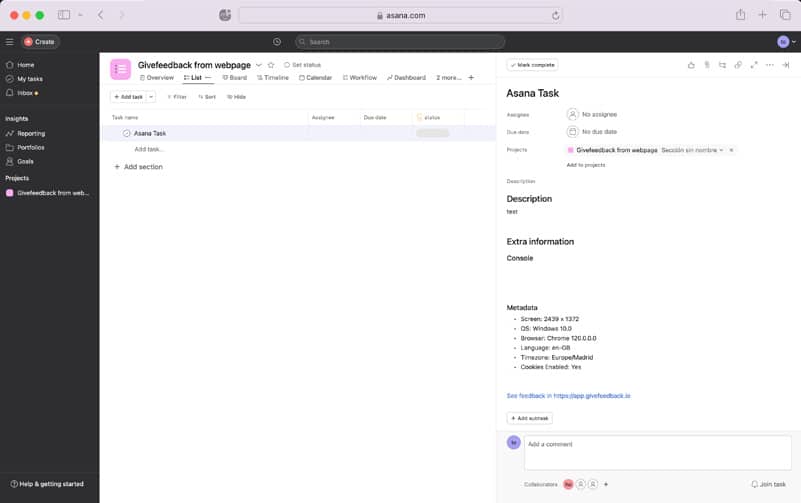
Good for: client reviews, UAT and pre-launch QA, where many non-technical people report issues. Limits: the screenshot covers the visible part of the page (not full-page), there's no video or console log capture, and the markup editor has no blur tool. Besides Asana, it integrates with Notion, Jira, Trello, ClickUp, Slack and monday.com; Wrike and Discord are coming soon. If your team uses Notion, see our Notion bug tracker guide.
Comparison: five ways to get screenshots into Asana
| Method | Who captures context (URL, browser) | Client needs Asana account | Asana plan | Effort per issue |
|---|---|---|---|---|
| Paste / attach | You, by hand | Yes, or you do it for them | Any | High |
| Proofing | You, by hand | Yes | Advanced+ | Medium |
| Email to project | You, by hand | Must be project member | Any | Medium |
| Asana Form | Client, by hand | No | Starter+ | Medium (for client) |
| Feedback widget (GiveFeedback.io) | Automatic | No | Any | Low |
A suggested Asana project for website feedback
Whichever method you use, a consistent project structure keeps feedback from piling up.
Sections (board columns):
- Inbox: new, untriaged tasks. Keep it as the first section and move anything new here if it lands elsewhere.
- To fix: triaged, assigned, prioritized.
- In progress
- Ready for client review
- Done
Custom fields (Starter plan or above):
| Field | Type | Values |
|---|---|---|
| Type | Single-select | Bug, Content change, Design change, Question |
| Priority | Single-select | High, Medium, Low |
| Device | Single-select | Desktop, Tablet, Mobile |
| Phase | Single-select | Before launch, After launch |
Rules of thumb:
- One issue per task. If a client sends five problems in one report, split them into subtasks or separate tasks.
- One person triages the Inbox daily during review rounds: sets Type and Priority, assigns, merges duplicates.
- Before launch, filter Priority = High and incomplete. That list should be empty, or accepted in writing by the client. Our website QA checklist covers what else to check.
Example task
Task name: Checkout button text cut off Section: Inbox → To fix Assignee: Front-end developer · Priority: High · Type: Bug Description: "The button says 'Proceed to chec'. Should show the full text." Page: https://staging.example.com/cart/ · Chrome 129 · Windows 11 · 1280×720 Attachment: screenshot with a red rectangle around the button
That task can be fixed without a single follow-up question, which is the whole point. For more on writing reports like this, see how to write a bug report.
Which method should you use?
If you're the one finding the issues, paste screenshots into tasks and use Proofing if your plan has it. If clients email you screenshots, forward them to the project address. If clients review the whole website before launch, let them report from the site and have the tasks created for you: that's what GiveFeedback.io's Asana integration does, and it's free to start.
Frequently asked questions
Can you annotate images directly in Asana?
Yes, with Asana Proofing, which lets you click on an image or PDF attachment and add feedback that becomes a subtask. As of October 2026 Proofing is only available on the Advanced and Enterprise plans, not on Personal or Starter.
How do I email a screenshot into an Asana project?
Every Asana project has its own email address (x+projectID@mail.asana.com). Email the screenshot there: the subject becomes the task name, the body the description and the image is attached. You can only create tasks in projects you are a member of, unless the project and team are public.
How do clients send website feedback to Asana without an Asana account?
Use an Asana form or a website feedback widget. With GiveFeedback.io, the client clicks a button on the website, captures and annotates the page, and the report is created as a task in your chosen Asana project; the client needs no account in either tool.
Is the GiveFeedback.io Asana integration free?
Yes. The Asana integration is included in the free plan (up to 5 projects and 50 feedback reports). Paid plans start at €9.99 per month and remove the screenshot watermark.
Keep reading

Workflow
Client Website Approval: How to Get Sign-Off Without Delays
Client website approval made simple: the 5 approval stages, a revision-limit contract clause, a sign-off email template and a checklist you can reuse.
Workflow
Notion Bug Tracker Template (Free) for Website Projects
A free Notion bug tracker template for website projects: import the CSV, get the right properties and board views, and send client feedback into it.

Guides
How to Choose a Website Feedback Tool (2026 Checklist)
How to choose the best website feedback tool in 2026: tool types, a 12-point checklist, a free scoring template and a one-week client trial plan.
Collect visual feedback on your next website
Visual website feedback for agencies, freelancers and their clients.
Free plan forever · No credit card · Set up in minutes