
How to Annotate Website Screenshots (and Send Them to Devs)
By GiveFeedback.ioUpdated 8 min readEspañol

Knowing how to annotate website screenshots well saves more time than any tool choice. A screenshot with one red box and a sentence like "logo overlaps the menu on 1366px screens" gets fixed the same day; a screenshot covered in scribbles with "see attached" gets a reply asking what you meant. This guide covers the four ways to annotate a website screenshot (OS tools, browser tools, dedicated apps and in-site feedback widgets), when each one makes sense, and what a good annotation looks like.
What is screenshot annotation?
Screenshot annotation is adding visual marks (arrows, boxes, highlights, text) to a screen capture so the person who receives it can see exactly what you mean. For website work, the annotated screenshot is usually the core of a bug report or a design change request, and it goes to a developer or designer who was not looking at your screen when you found the problem.
The annotation only does half the job. The other half is context: which page, which browser, which screen size. Keep that in mind when you compare tools below, because some capture that context for you and some don't.
Option 1: Built-in OS tools (free, already installed)
Windows: Snipping Tool
Press Win+Shift+S, drag over the area, and click the notification to open the capture in Snipping Tool. The editor has a pen, a highlighter, shapes such as arrows and rectangles (Microsoft's Snipping Tool help), an eraser, crop and undo/redo. Save the file or paste it straight into an email or chat.
macOS: Screenshot and Markup
Press Shift-Command-4 to select an area (or Shift-Command-5 for the Screenshot app with more options), then click the floating thumbnail in the corner. That opens Markup, where you can draw, add shapes, arrows and text, and highlight. Apple's guide lists all the shortcuts.
When it makes sense: you report a bug now and then, you are the one finding the issues, and you are happy to paste the URL and browser version by hand.
Limits: you have to save, attach and describe each screenshot yourself, and nothing records the page URL or browser. Clients rarely do this consistently.
Option 2: Browser screenshot tools
Browsers can capture things OS tools can't, mainly full-length pages.
| Browser | How to open it | Full page | Built-in annotation |
|---|---|---|---|
| Firefox | Ctrl+Shift+S (Cmd+Shift+S on Mac) or right-click → Take Screenshot | Yes ("Save full page") | No, copy or download only |
| Microsoft Edge | Ctrl+Shift+S (Screenshot, formerly Web capture) | Yes | Basic markup (draw, shapes, text) |
| Chrome | DevTools → Command menu (Ctrl+Shift+P) → "Capture full size screenshot" | Yes | No |
Sources: Mozilla support and Microsoft Edge's built-in Screenshot tool, checked in October 2026. Edge's markup options have changed between versions, so check what yours shows.
When it makes sense: you need the whole page in one image, for example to comment on spacing across sections or to send a client a full-page proof. Capture it in the browser, then annotate it in an OS tool or one of the apps below.
Option 3: Dedicated screenshot and annotation apps
These apps are faster to use all day, add features like blur, numbered steps and cloud links, and some of them are free.
| App | Platform | Price (as of October 2026) | Good for |
|---|---|---|---|
| ShareX | Windows | Free, open source | Power users: arrows, text, blur and pixelation, auto-upload, custom workflows |
| CleanShot X | Mac | $35 one-time (Basic, one year of updates); Pro $10 per user/month billed yearly | Fast capture, annotation, scrolling capture, cloud share links |
| Snagit | Windows, Mac | Paid subscription (check TechSmith for current price) | Teams documenting software, step tools, templates, blur |
| Markup Hero | Web, Chrome extension, desktop | Free plans with limited uploads; paid plan available | Quick annotate-and-share links without installing a big app |
When it makes sense: you or your team take dozens of screenshots a week, or you need blur to hide customer data before sending an image.
Limits: every person reporting needs the app installed and needs to learn it. That works for your team. It does not work for a client who reviews one website every two years.
Option 4: In-site feedback widgets
A website feedback widget is a small script you add to the site that shows a feedback button on every page. The reviewer clicks it, the widget captures the page, they annotate it right there and submit. The screenshot, comment, URL and browser details land together in a dashboard or project management tool.
This is how GiveFeedback.io works:
- You paste one script into the site's
<head>(there are install guides for WordPress, Shopify, Wix, Squarespace and others). - A "Give Feedback" button appears on the site. The client clicks it; no account needed.
- The browser asks permission to capture the tab, and the visible part of the page is captured.
- The client marks it up with arrows, rectangles, ellipses, text, pen or highlighter, in five colours, then adds a title, a description and a type (Bug, Proposal, etc.).
- The report arrives with the page URL, screen resolution, OS, browser and version, language and timezone, ready to send to Jira, Trello, Asana, Notion or Slack.
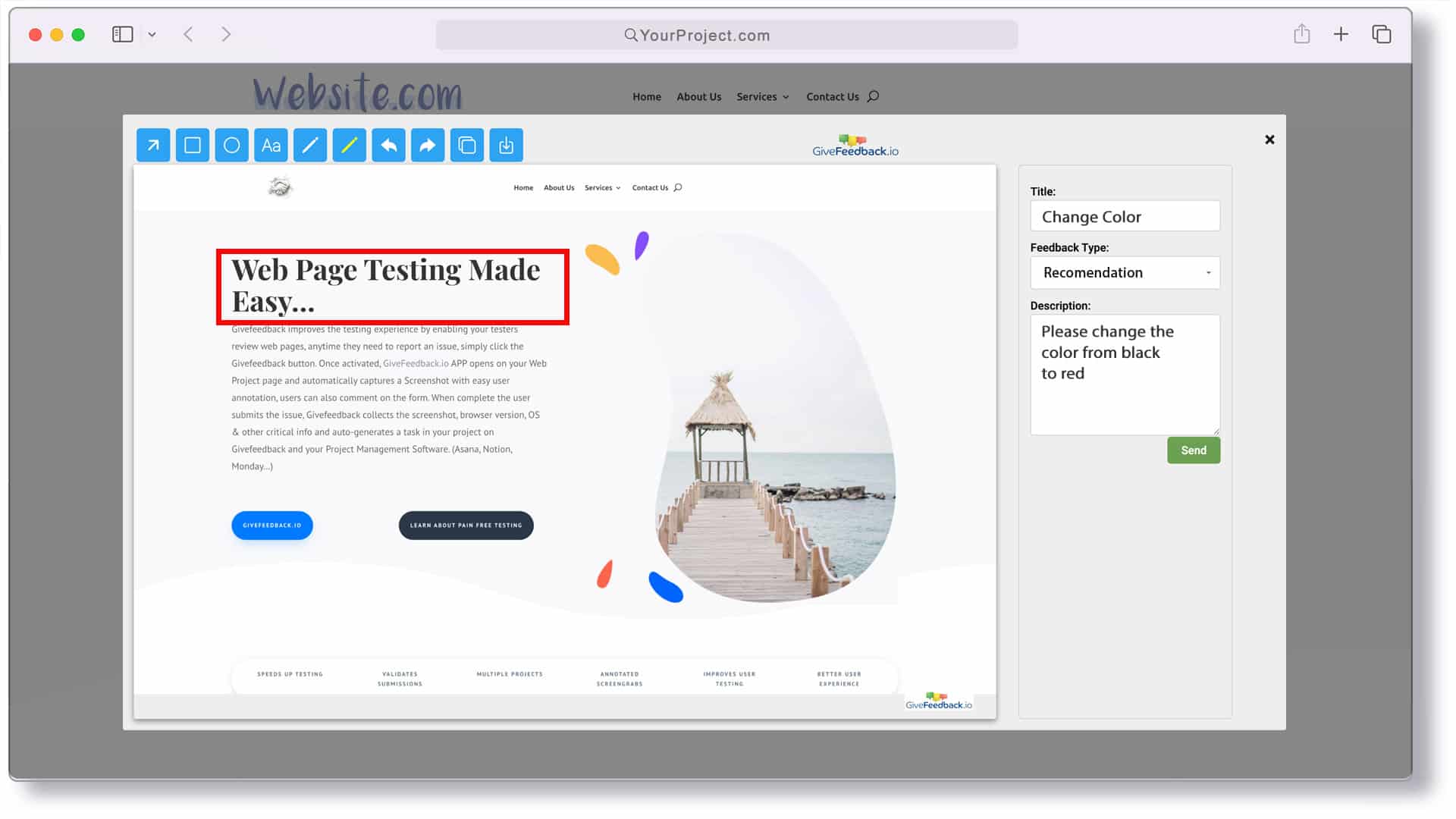
When it makes sense: clients, testers or non-technical colleagues review a site during design, build or launch. You get consistent reports without teaching anyone a screenshot app.
Limits, honestly: GiveFeedback.io captures the visible viewport, not the full page, has no blur tool, and doesn't record video or console logs. The free plan adds a watermark to screenshots. For a developer debugging JavaScript errors, a tool with console capture may be a better fit; we compare several in our guide to website feedback tools.
Which option should you use?
| Situation | Best option |
|---|---|
| You find a bug once a week and fix it yourself | OS built-in tool |
| You need to comment on a long landing page as a whole | Browser full-page capture + any annotation app |
| Your team writes documentation or support replies all day | Dedicated app (ShareX, CleanShot X, Snagit) |
| Clients or testers review a website before launch | In-site feedback widget |
| Feedback must end up as tasks in your project tool (Jira, Trello, Asana…) | Feedback widget with that integration |
Many agencies use two: a dedicated app for internal work and a widget for client reviews.
How to annotate a website screenshot so it gets fixed
The tool matters less than these rules.
1. Capture the right area
Include enough of the page for orientation (the header or section title) but not the whole screen with your bookmarks bar and 30 tabs. If the problem depends on screen width, say the width.
2. Use one mark per problem
One rectangle or one arrow. If you find three problems on one screen, send three reports; developers fix and close issues one at a time, and a screenshot with five numbered issues usually ends up with four fixed and one forgotten.
3. Add a short label on the image or in the title
Write what is wrong and what you expected: "Button text cut off, should read 'Book a call'". Not "this", not "fix", not "??".
4. Use colour on purpose
Red for errors, another colour for suggestions, consistently. Avoid highlighter over text you want read; it can hide the very thing you mean.
5. Hide private data
If the page shows customer emails, order numbers or personal data, blur or crop it before sending. If your tool has no blur, crop.
6. Attach the context
Page URL, browser and version, OS, screen size. Feedback widgets add these automatically; with other tools, type them under the image.
A bad vs good example
Bad: a full-screen capture with three red circles, two arrows and a scribbled "?!", sent by email with the subject "website".
Good:
Title: Contact form submit button overlaps footer on mobile Annotation: one red rectangle around the button and footer, label "overlaps footer" Expected: 24px gap between button and footer, as in the design URL: https://staging.example.com/contact/Environment: Chrome 129, Android 14, 412×915
The developer can open that URL in the same browser size and see the issue in a minute. For a full template, see how to write a bug report.
Getting the screenshot to the developer
An annotated screenshot sitting in someone's Downloads folder helps no one. Agree on one place where all screenshots go:
- Your task tool. Attach the image to a task in Asana, Notion, Jira or similar, one task per issue. See our guides to getting screenshots into Asana and tracking bugs in Notion.
- A shared feedback dashboard. Widgets like GiveFeedback.io keep every report in a list with status (Open, Resolved, Archived), so nothing gets lost in email threads.
- Not chat, not email. Both work for a single question. For a review round with 40 comments, they become a search problem.
If you only remember one thing: one problem, one mark, one sentence, plus the URL and browser. Pick the tool that makes that easiest for the person doing the reporting, which, for client reviews, is usually the one they don't have to install. You can try GiveFeedback.io free on your next project and see whether it fits.
Frequently asked questions
What is the easiest way to annotate a screenshot of a website?
Use the tool already on your computer. On Windows, press Win+Shift+S and edit the capture in Snipping Tool; on a Mac, press Shift-Command-4 and click the thumbnail to open Markup. Both let you add arrows, shapes and text without installing anything.
How do I annotate a full-page screenshot of a website?
Capture the full page first with a browser feature (Firefox's Take Screenshot has a Save full page option; Chrome DevTools has a Capture full size screenshot command), then open the image in an annotation app. Most feedback widgets, including GiveFeedback.io, capture only the visible part of the page.
Should I blur sensitive data before sending a screenshot?
Yes, if the screenshot shows customer names, emails, order data or anything private. Use a tool with a blur or pixelate option (ShareX and Snagit have one) or crop the area out. GiveFeedback.io's markup editor has no blur tool, so avoid capturing private data with it.
What should an annotated screenshot for a developer include?
One clear mark on the problem, a short label that says what is wrong and what you expected, the page URL, and the browser, OS and screen size. Without the URL and environment, the developer often cannot reproduce the issue.
Keep reading

Guides
How to Choose a Website Feedback Tool (2026 Checklist)
How to choose the best website feedback tool in 2026: tool types, a 12-point checklist, a free scoring template and a one-week client trial plan.

Guides
How to Collect Client Feedback on a Website (Step by Step)
How to collect client feedback on a website: compare 5 methods, run a clean review round step by step, and copy our sample briefing email for clients.

Guides
User Acceptance Testing (UAT): Template, Checklist & Examples
What user acceptance testing is, UAT vs QA, example test scenarios, exit criteria and a free UAT test plan and sign-off template (Excel) for websites.
Collect visual feedback on your next website
Visual website feedback for agencies, freelancers and their clients.
Free plan forever · No credit card · Set up in minutes